

Skip to navigation

Evaluating many recordings

Run a Gradio app that asks the same questions about many recordings and shows every answer in one table.

Upload a set of recordings, get answers to the same questions about each one and compare them row by row. Clone this Gradio app to follow along, or fork it as a starting point.
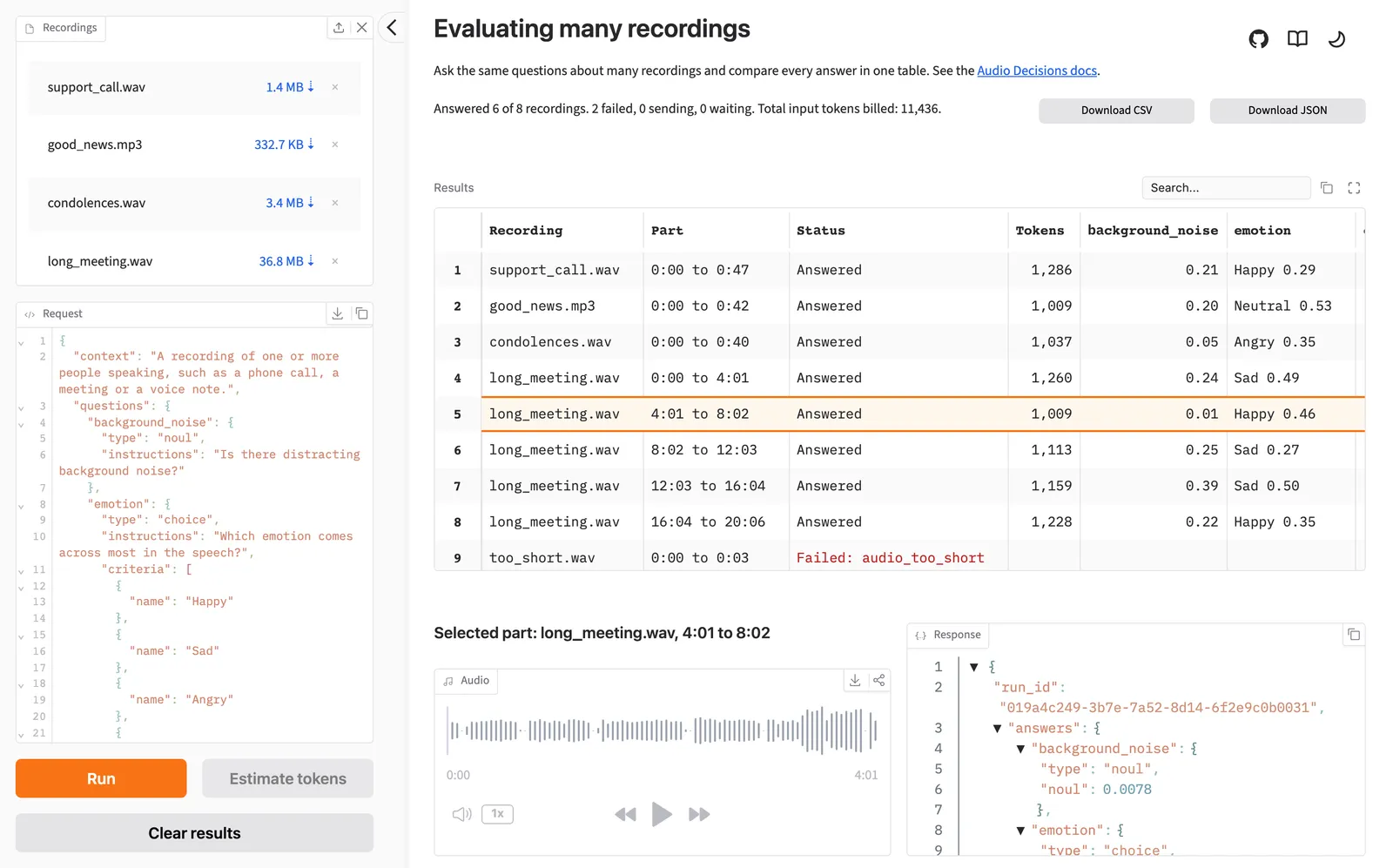
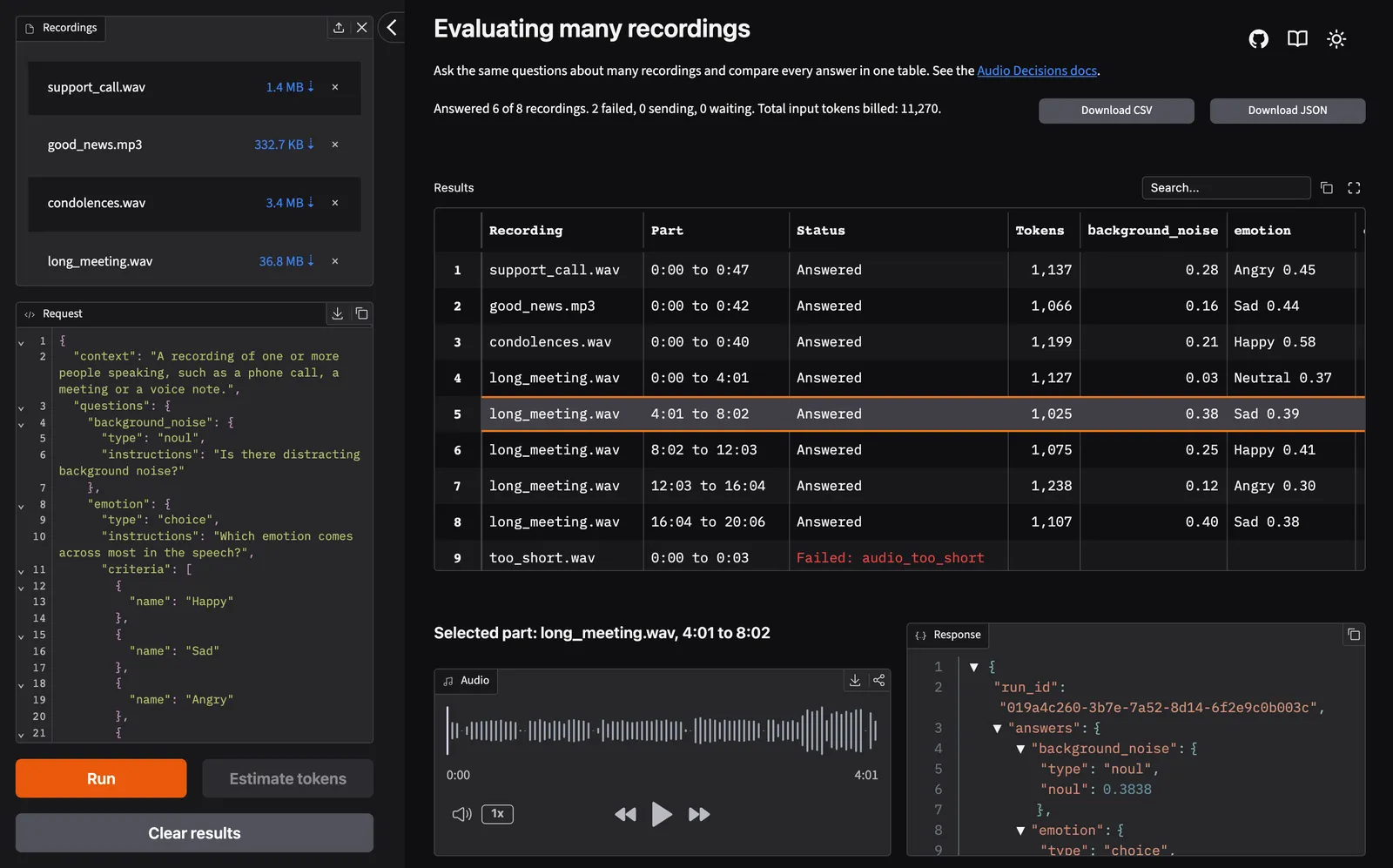
The app after a run over eight recordings, with the recordings and the request in the sidebar. The table has one row per part with its billed tokens and one column per question, and the selected part's audio is beside its full response.The app after a run over eight recordings, with the recordings and the request in the sidebar. The table has one row per part with its billed tokens and one column per question, and the selected part's audio is beside its full response.

By the end you will have the app running locally, and you will know how it stays within the rate limit, sends long recordings in parts, estimates a run’s tokens, picks up a stopped run and shows the answers.

Repositoryhume-audio-decisions-gradio-uploader-example on GitHub
SDKhume-audio-decisions on PyPI
Python3.11 or later

Prerequisites

  1. Python 3.11 or later, and git.
  2. An API key from the API keys page of the Hume Platform. See Authentication.
  3. Recordings in MP3, or in WAV with PCM or floating-point samples, each at least 5 seconds long. The app sends a recording longer than 5 minutes in parts.

Run the example

Clone the repository and install its dependencies. If you use uv, it needs version 0.13.6 or later and installs the Python version in .python-version for you.

Shell
git clone https://github.com/HumeAI/hume-audio-decisions-gradio-uploader-example.git
cd hume-audio-decisions-gradio-uploader-example
uv sync

Set your API key. The app creates the SDK client when it starts, which reads HUME_API_KEY on the server, so the key never reaches the browser. If the variable is not set, the app exits when it starts.

Shell
export HUME_API_KEY=your_api_key

Start the app and open http://localhost:7860.

Shell
uv run app.py

Add recordings under Recordings in the sidebar, then press Run. To ask your own questions, edit the Request first. Each part of each recording gets a row with the input tokens it was billed and one column per question. Select a row to hear its part and see its full response. Press Estimate tokens before a run to see what it would be billed. During a run, Stop cancels the requests in flight, and pressing Run again sends only what has no answer yet. Results last as long as the browser tab, so download them as CSV or JSON before you reload the page.

How it works

  1. Parse the request

    1. The Request editor starts with DEFAULT_REQUEST, which asks one question of each type: noul, choice, score and span. It is the request part of an API call as JSON, so a request from these docs pastes in unchanged.

    2. parse_request checks the editor’s text with the SDK’s DecisionsRequest model before anything is sent, and raises a ValueError whose message the app shows on the Request editor. json.loads keeps only the last value of a repeated key, so _reject_repeated_keys rejects a repeated question ID that would otherwise drop a question.

  2. Pace every request

    1. make_client builds an AsyncDecisionsClient on the SDK’s DefaultAsyncHttpxClient with a request hook, so every request the SDK sends waits for its turn, retries included. REQUESTS_PER_MINUTE is 50, which leaves room for other work under the limit of 60 that every API key in your organization shares. The SDK retries a rate limit or server error up to MAX_RETRIES times before it reports the error. See Limits.

    2. _Pacer starts requests at least 1.2 seconds apart. Each request claims its start time before it sleeps, so requests that wait at the same time queue up in order without a lock.

    3. _run_workers starts CONCURRENT_RECORDINGS workers that share one iterator, so four recordings are sent at a time and each goes to only one worker. main in app.py creates one client for the whole app, so every browser tab shares the same pacer.

  3. Send each recording in parts

    1. iter_create_chunked cuts each recording into the fewest equal parts that fit the API’s limits, none longer than MAX_PART_MS. Each part goes in its own request with the same request, and its result arrives as soon as that request is done, so the table fills in during the run. start_ms and end_ms let a run start partway through a recording. See Long recordings in the Python SDK README.

    2. A part whose request fails does not raise. Its error is on the part’s result, and the table shows why it failed. Most errors also end that recording, so its later parts show as Not sent. An error from the API key or the request, such as a rejected key or an invalid question, would fail every other recording the same way, so it stops the whole run. See Errors.

    3. The SDK raises ValueError only before it sends anything, when it can’t read or cut the file, so the recording is shown as unreadable and nothing is billed for it.

  4. Estimate the input tokens

    1. Estimate tokens cuts each recording into the parts Run would send, with the SDK’s iter_audio_chunks and the same settings. A part under 5 seconds is counted apart rather than estimated, since the API rejects it.

    2. input_tokens takes each part’s duration with the request’s questions and context, and no audio is sent. A total that leaves out parts would understate the run, so any error stops the estimate. The estimate can differ slightly from the input tokens each response is billed, received.input_tokens. See Estimate input tokens.

  5. Pick up where a run stopped

    1. An answer can change when other questions are added, removed or reordered, so _same compares the order of the questions as well as the request. While the table holds answers, Run refuses a different request until you press Clear results.

    2. When you press Run again, _resend_from finds where each recording starts again: at the first part that failed for a reason that can pass, such as a timeout, or after the last part that was sent. A recording that stopped at a part whose file the API rejected is not sent again, because that part would fail the same way, and a recording with every answer is skipped.

  6. Show the answers

    1. Each cell is short enough to compare down a column: the share of raters who would answer yes to a noul question, the mean score on a scale from 0 to the highest level and the choice option with the largest share of raters, followed by that share. See Interpreting answers.

    2. A span answer’s times count from the start of its part, so _cell adds the part’s start to place each span in the recording. Selecting a row cuts the part out again with cut in evaluation.py, so the player plays the audio that was sent, and its times, like the response’s, count from the start of the part.

DEFAULT_REQUEST = json.dumps(
{
"context": (
"A recording of one or more people speaking, such as a phone call, "
"a meeting or a voice note."
),
"questions": {
"background_noise": {
"type": "noul",
"instructions": "Is there distracting background noise?",
},
# ...
"laughter": {
"type": "span",
"instructions": "When does someone laugh?",
},
},
},
indent=2,
ensure_ascii=False,
)
def parse_request(text: str) -> DecisionsRequest:
try:
data = json.loads(text, object_pairs_hook=_reject_repeated_keys)
except json.JSONDecodeError as error:
position = f"line {error.lineno}, column {error.colno}"
message = f"The request isn't valid JSON: {error.msg} at {position}."
raise ValueError(message) from error
# ...
try:
request = DecisionsRequest.model_validate(data)
except ValidationError as error:
raise ValueError(_describe(error)) from error
# ...
return request
def _reject_repeated_keys(pairs: list[tuple[str, object]]) -> dict[str, object]:
# json.loads keeps only the last value of a repeated key, so a repeated
# question ID would drop a question without a word.
data: dict[str, object] = {}
for key, value in pairs:
if key in data:
raise ValueError(f'The request repeats the key "{key}".')
data[key] = value
return data

Adapt it to your recordings

  1. Change the default request. It is DEFAULT_REQUEST in questions.py. To try a request before you change the code, edit it in the app’s Request editor. See Writing questions.
  2. Change the pace. REQUESTS_PER_MINUTE in evaluation.py sets the pace, CONCURRENT_RECORDINGS the number of recordings sent at once and MAX_PART_MS the longest part, which must be 5 minutes or less. Sending more recordings at once never raises the pace above REQUESTS_PER_MINUTE, and it holds more audio in memory. Every API key in your organization shares a limit of 60 requests a minute. See Limits.
  3. Change how answers are shown. _cell in results.py formats each answer’s cell. For example, a score cell can show the level with the largest share of raters instead of the mean. See Interpreting answers.
  4. Keep the results. write_downloads in results.py writes the CSV and JSON downloads. The JSON holds the request and, for every part that was sent, its response with its run_id or its error. To keep results past the browser tab, save them to your own storage there. See Store the results.
  5. Before you share it. The app listens only on your own machine and has no sign-in. Anyone who can reach it can spend your API key, so add authentication before you expose it on a network or through a Gradio share link.

Next steps