> For clean Markdown of any page, append .md to the page URL.
> For a complete documentation index, see https://dev.hume.ai/llms.txt.
> For AI client integration (Claude Code, Cursor, etc.), connect to the MCP server at https://dev.hume.ai/_mcp/server.
# Voice Cloning
[Octave](https://www.hume.ai/blog/octave-the-first-text-to-speech-model-that-understands-what-its-saying), Hume's
speech-language model, deeply models language and speech patterns to generate voice. While Octave supports [voice
design](/docs/voice/voice-design) from natural language descriptions, it can also create voices from audio samples,
reflecting the speaker's tone, accent, cadence, and vocal identity.
**Voice cloning availability depends on your subscription tier.** Check your access and usage limits on the
[billing](https://app.hume.ai/billing) page.
## Create a voice clone
You can create a voice clone using one of two supported methods:
1. **Record your voice** using your microphone in a guided session.
2. **Upload an audio file** containing a speech sample from a consenting speaker.
To create a voice clone, start from the Platform’s [Voice Library](https://app.hume.ai/voices) page.
Click **Voice Cloning** to open the cloning menu.
The sections below walk through each method step by step.
### Record your voice
Follow the steps below to record a speech sample for voice cloning.
#### Start recording setup
Click **RECORD AUDIO** to begin the recording session flow.
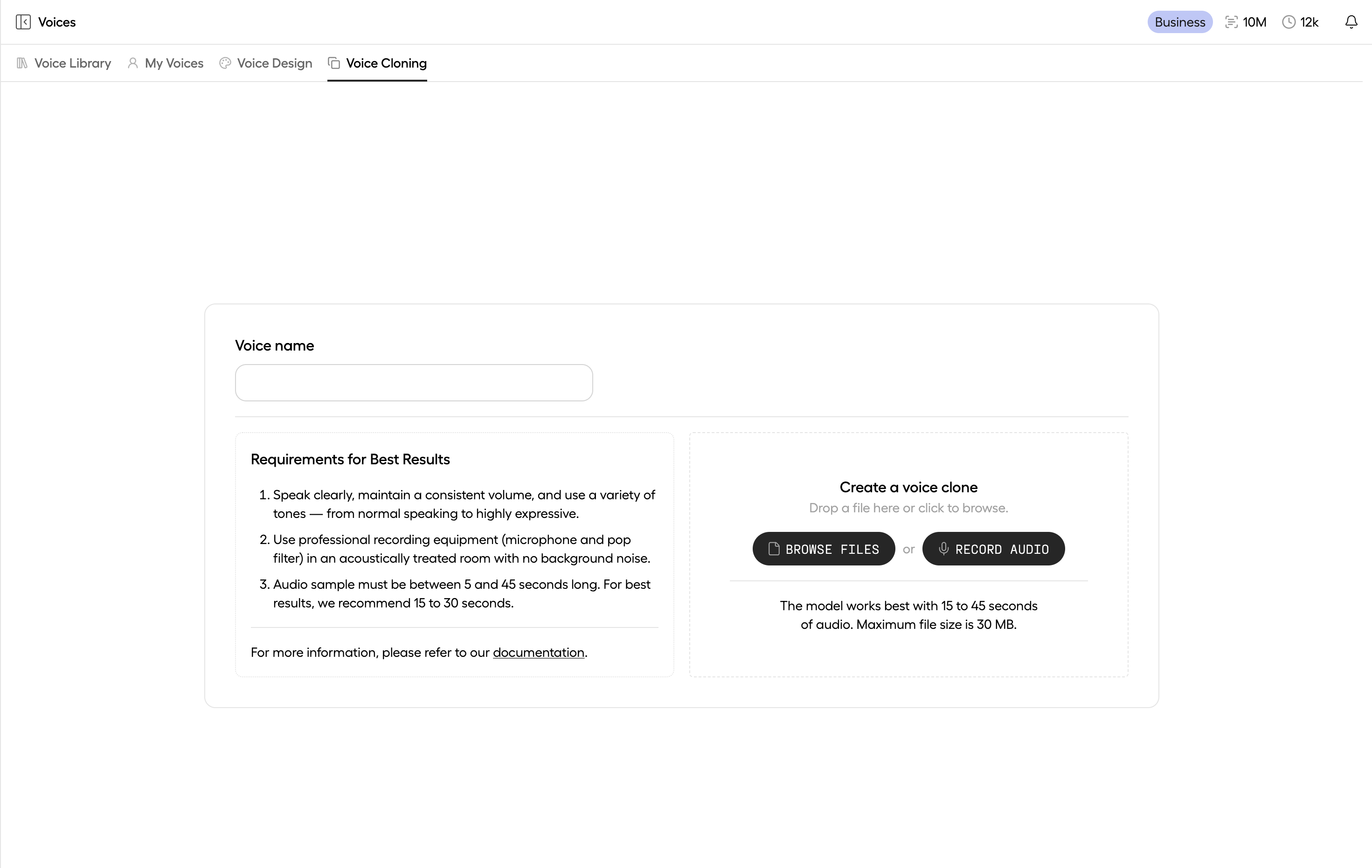 #### Name your voice clone
Input a name for your voice, and click **CONTINUE**.
#### Name your voice clone
Input a name for your voice, and click **CONTINUE**.
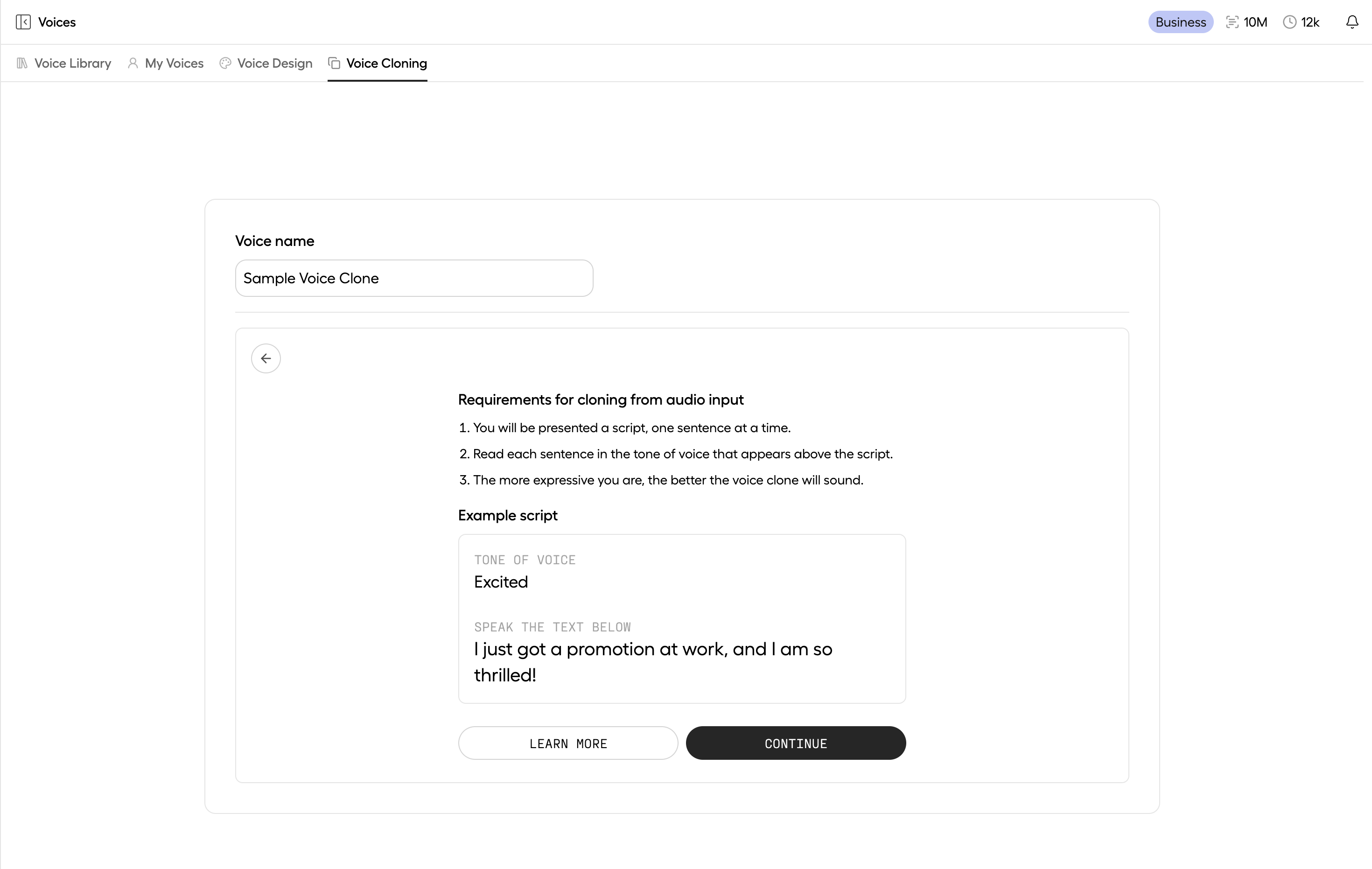 #### Select a microphone
Select your microphone from the dropdown menu.
If you’re using an external microphone and don’t see it listed, ensure it’s properly connected.
Click **START** to begin recording.
#### Select a microphone
Select your microphone from the dropdown menu.
If you’re using an external microphone and don’t see it listed, ensure it’s properly connected.
Click **START** to begin recording.
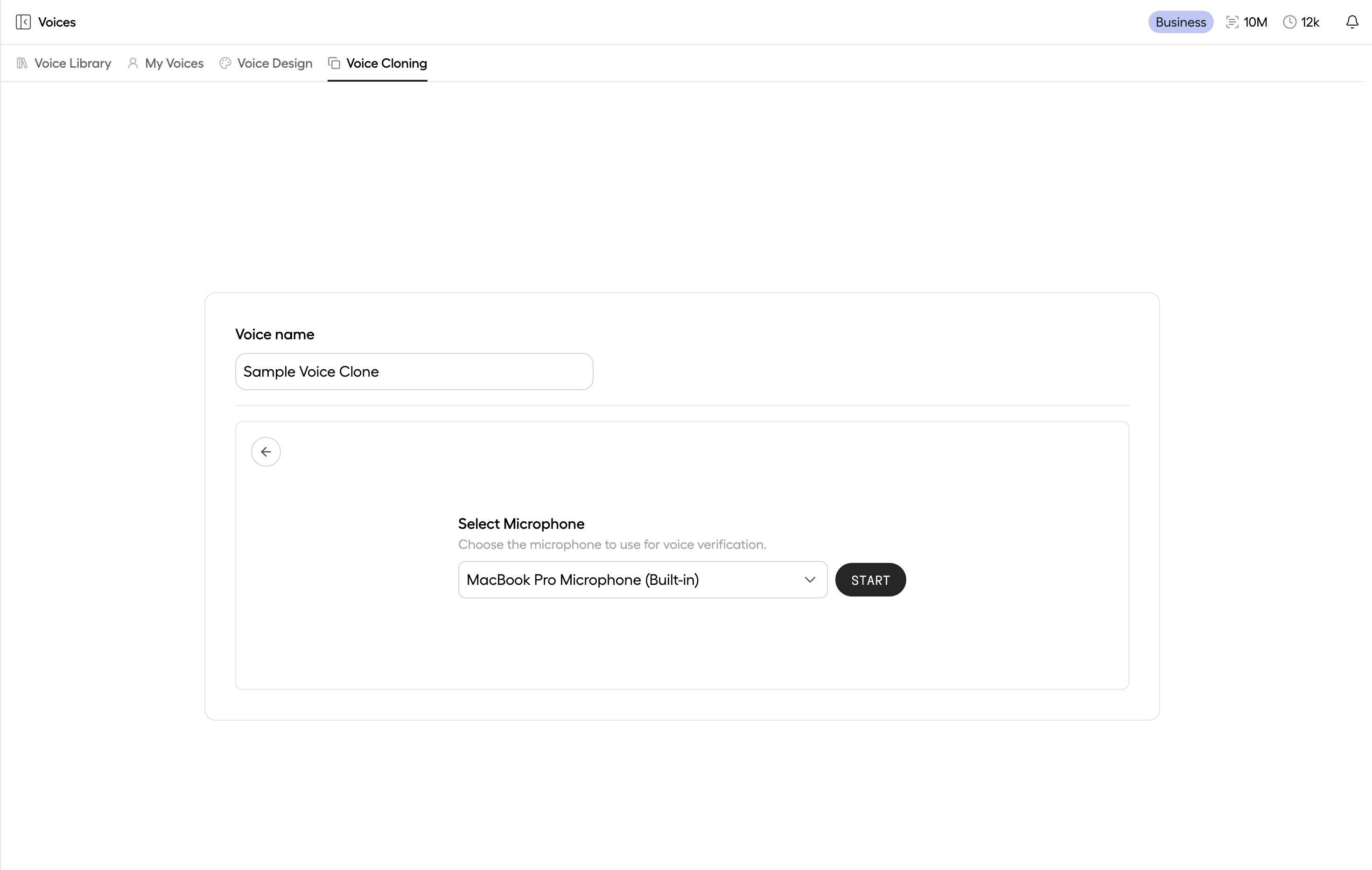 #### Record your voice
During the session, text prompts are streamed one line at a time for you to read aloud.
The full session typically takes less than 30 seconds.
#### Record your voice
During the session, text prompts are streamed one line at a time for you to read aloud.
The full session typically takes less than 30 seconds.
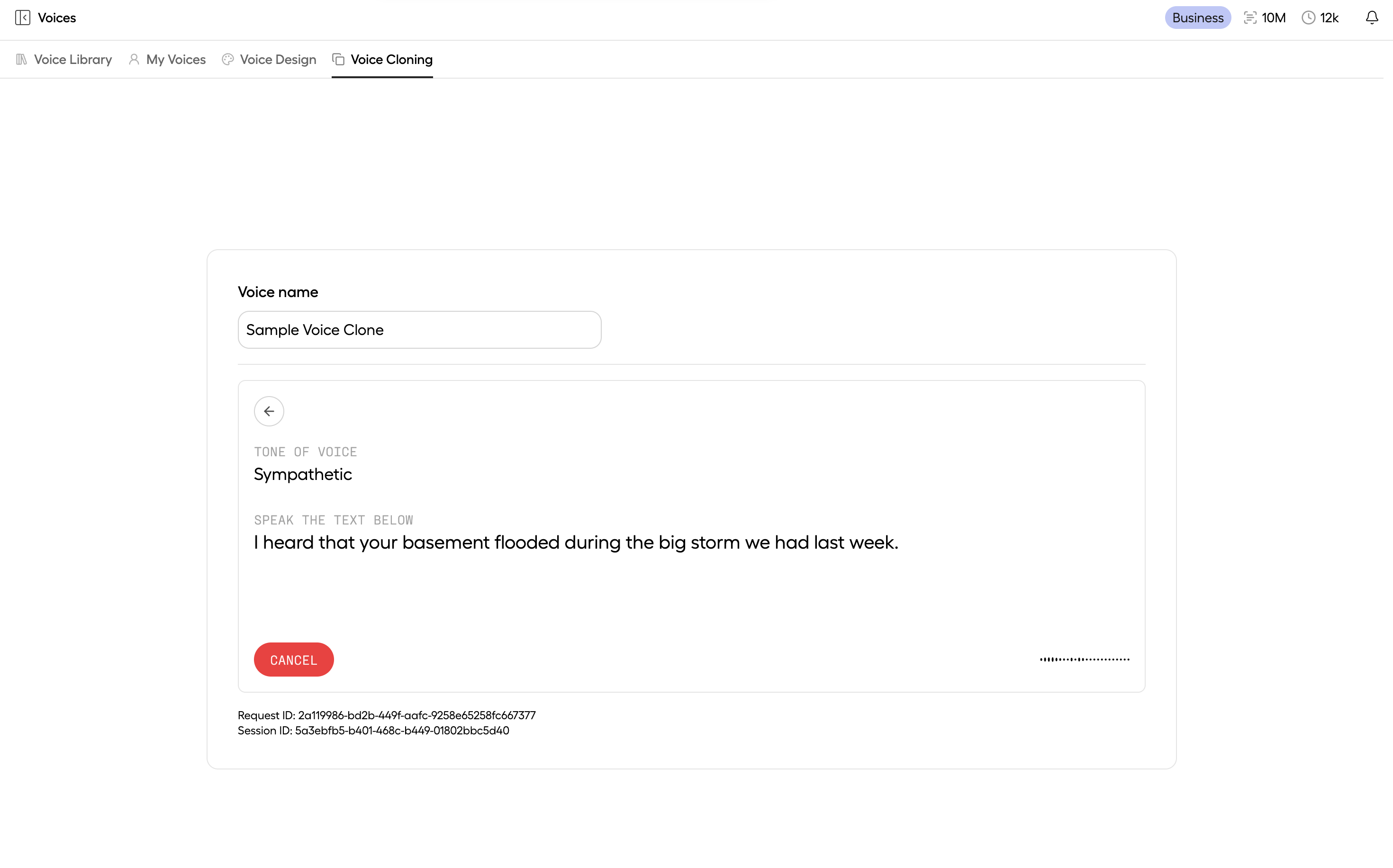 #### Save the voice clone
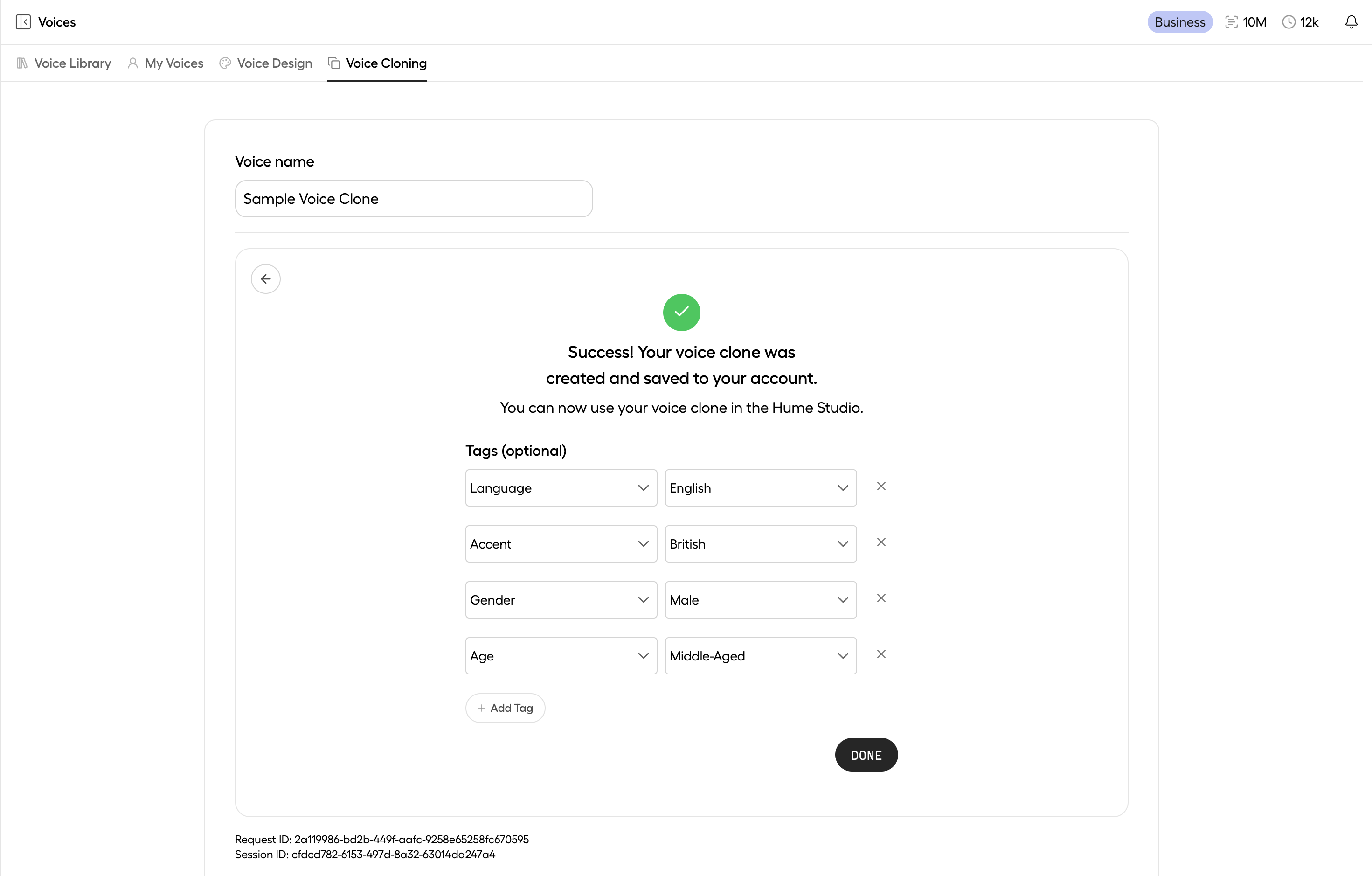
After the recording session is complete, the recorded audio is uploaded and your voice clone is created.
Click **SAVE VOICE** to complete the flow and be redirected to the [My
Voices](https://app.hume.ai/voices?category=my-voices) page.
#### Save the voice clone
After the recording session is complete, the recorded audio is uploaded and your voice clone is created.
Click **SAVE VOICE** to complete the flow and be redirected to the [My
Voices](https://app.hume.ai/voices?category=my-voices) page.
 ### Upload an audio file
Follow the steps below to upload a pre-recorded audio file and create a voice clone.
**Upload only voice samples for which you have the necessary rights or consent to clone.** Users must comply with
Hume’s [Terms of Use](https://www.hume.ai/terms-of-use), [Ethical
Guidelines](https://thehumeinitiative.org/guidelines/), [Privacy Policy](https://www.hume.ai/privacy-policy), and
applicable laws.
#### Upload an audio file
Click **BROWSE FILES** to select a file to upload.
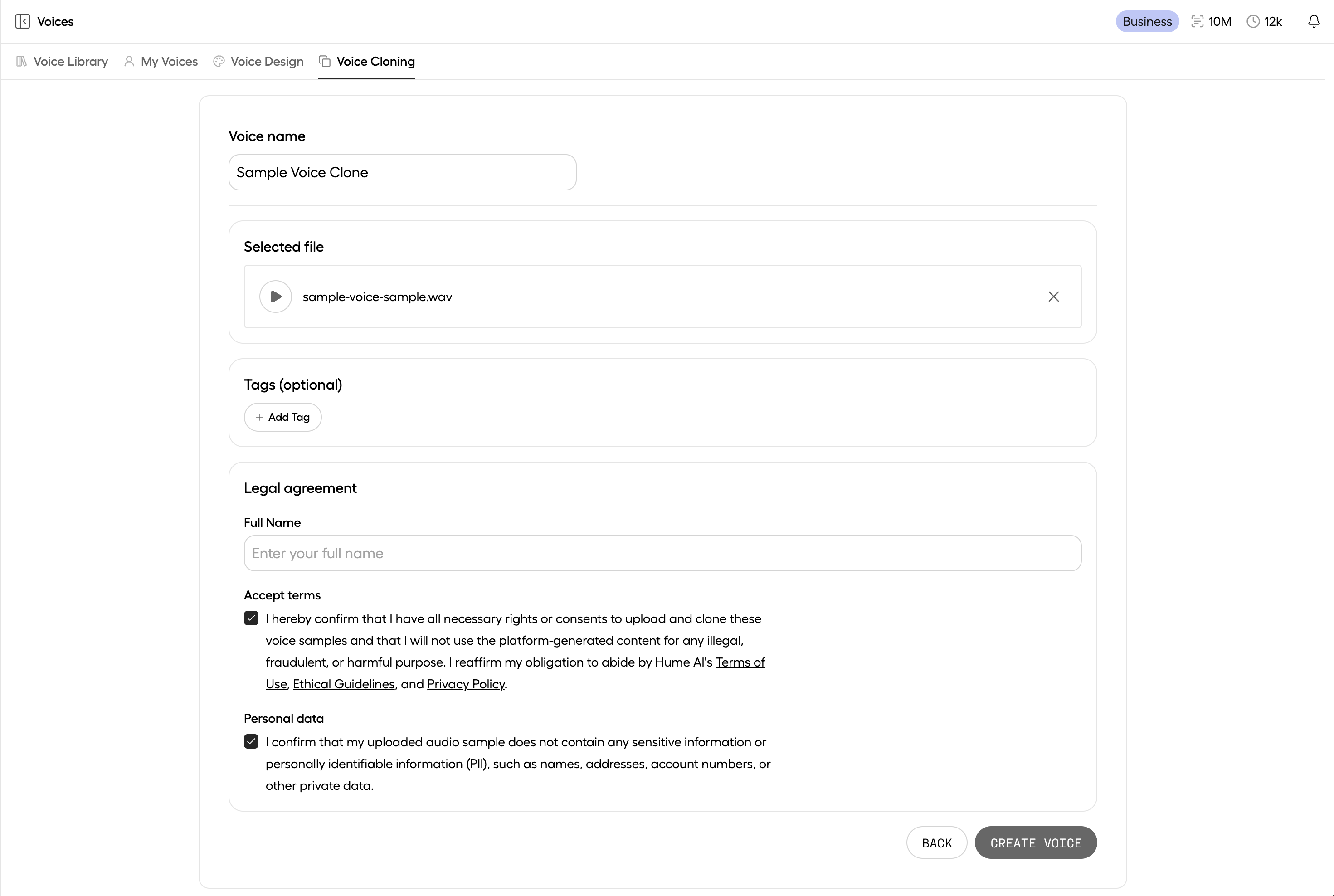
#### Create voice clone
Input a name for the voice and fill out the legal agreements, confirming you have the necessary rights or consents
to upload and clone the provided voice sample.
Click **CREATE VOICE** to complete the flow and be redirected to the [My
Voices](https://app.hume.ai/voices?category=my-voices) page.
### Upload an audio file
Follow the steps below to upload a pre-recorded audio file and create a voice clone.
**Upload only voice samples for which you have the necessary rights or consent to clone.** Users must comply with
Hume’s [Terms of Use](https://www.hume.ai/terms-of-use), [Ethical
Guidelines](https://thehumeinitiative.org/guidelines/), [Privacy Policy](https://www.hume.ai/privacy-policy), and
applicable laws.
#### Upload an audio file
Click **BROWSE FILES** to select a file to upload.
#### Create voice clone
Input a name for the voice and fill out the legal agreements, confirming you have the necessary rights or consents
to upload and clone the provided voice sample.
Click **CREATE VOICE** to complete the flow and be redirected to the [My
Voices](https://app.hume.ai/voices?category=my-voices) page.
 ## Use your voice clone
**You can use your voice clones in Hume products that support speech synthesis.** Reference them by name or ID
in [TTS](/docs/text-to-speech-tts/overview) requests, or configure [EVI](/docs/speech-to-speech-evi/overview)
to use the voice.
Use the playgrounds to preview how your cloned voice sounds in different scenarios:
Chat with an assistant configured with your voice clone, to see how it sounds in conversation.
See how your voice clone sounds with specific text input, or when given acting instructions.
See guides below for details on how to use your voice clone in your project or integration.
Configure EVI to use your voice clone.
Specify your voice clone in TTS requests.
***
## Use your voice clone
**You can use your voice clones in Hume products that support speech synthesis.** Reference them by name or ID
in [TTS](/docs/text-to-speech-tts/overview) requests, or configure [EVI](/docs/speech-to-speech-evi/overview)
to use the voice.
Use the playgrounds to preview how your cloned voice sounds in different scenarios:
Chat with an assistant configured with your voice clone, to see how it sounds in conversation.
See how your voice clone sounds with specific text input, or when given acting instructions.
See guides below for details on how to use your voice clone in your project or integration.
Configure EVI to use your voice clone.
Specify your voice clone in TTS requests.
***